
When you are signed into the platform, you are counted as an ‘active user’. An organization’s subscription determines how many active users can sign into the platform at the same time.
If you have been invited to work on projects by other organizations, you will be counted towards that organization's active sessions when you have their organization profile open.
Related: Who can end user sessions?
Topics
- How to check who is active?
- What 'Active users' shows
- Ending sessions
- Scenarios when the same person is counted as more than one active user
How to check who is active?
'Active users' shows who is currently signed into the organization. 'Active users' is visible to members of the organization but not visible to 'guests'.
If/ once you are signed in
You can get to 'Active users' if you are already signed in, or, once you have signed in, by clicking on your avatar or initials (profile menu) in the top right-hand corner, then selecting the 'Active users' menu option.
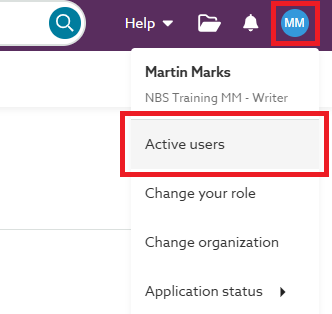
Screenshot showing the 'Active users' option on the profile menu.
If you cannot sign in because your subscription is full
If you see the 'This subscription to Lattira Spec/NBS Chorus is currently full' message when signing in, you can click on the 'View active users' link.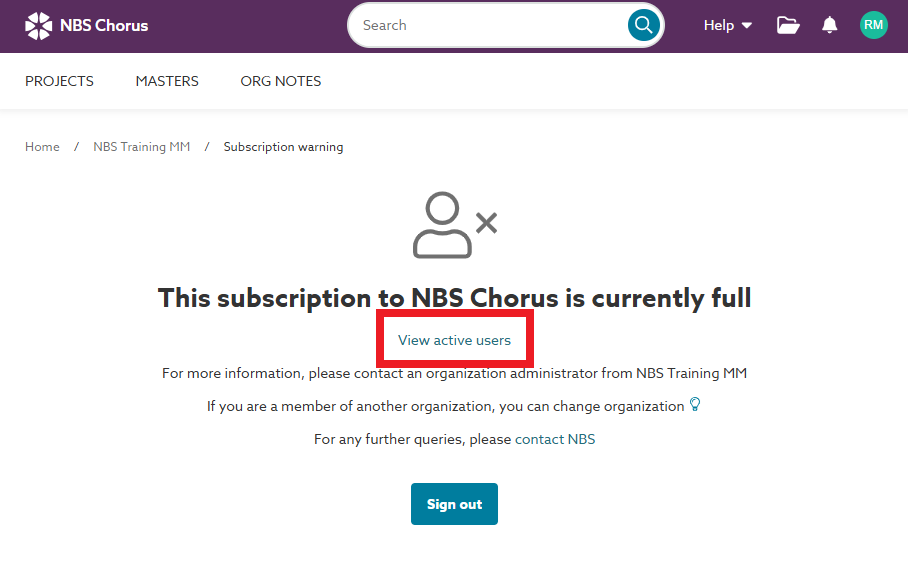 Screenshot showing the 'View active users' option when the subscription is full.
If your preferred role is not available when signing in
If you see the 'Select your role' dialog when signing in, you can click on the 'view active users' link.
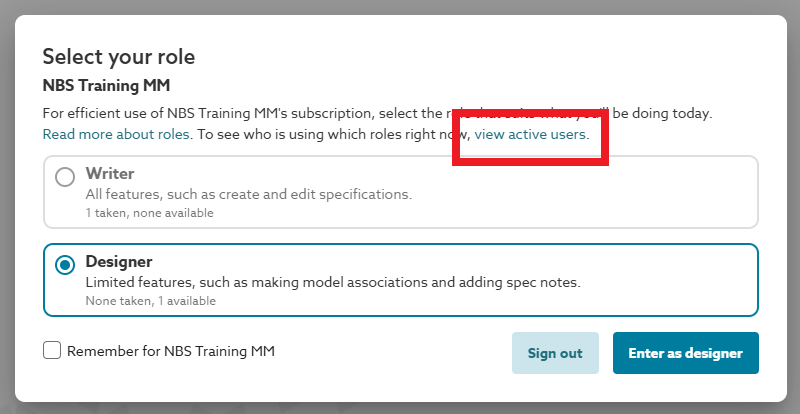
Screenshot showing the 'view active users' option when signing into an organization with multiple roles.
What 'Active users' shows
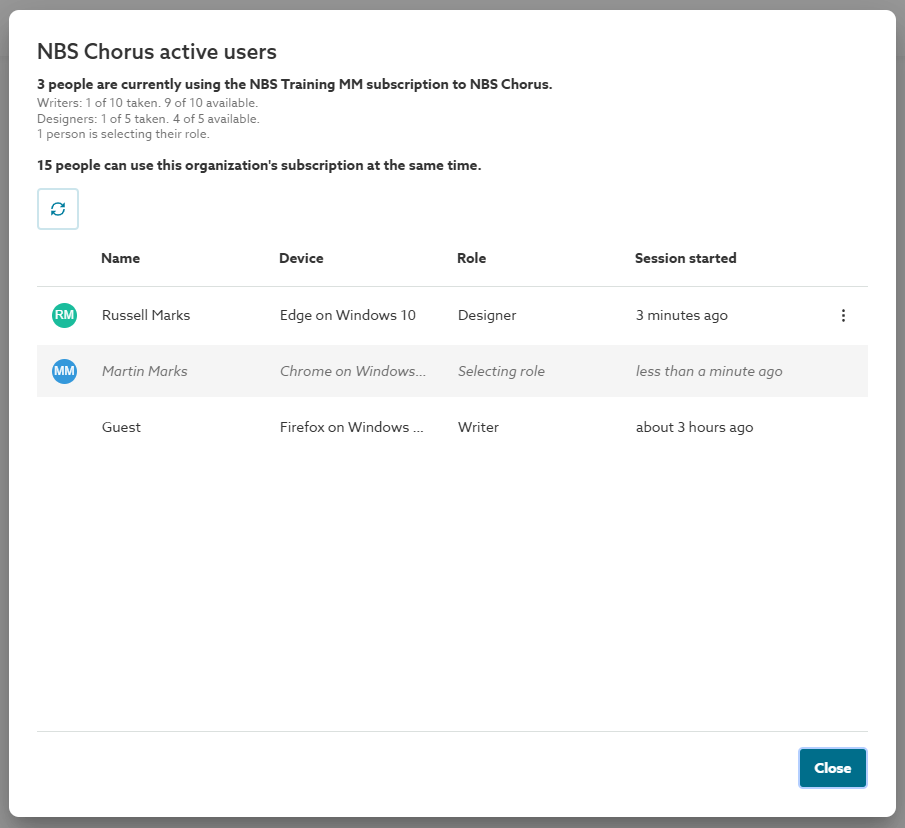
The 'Active users' window shows:
- The total number of people currently using the organization's subscription.
- The number of writer and designer licences taken and available together with the number of people currently selecting a role.
- The total number of concurrent sessions the organization's subscription currently supports.
- Who is currently signed in.
- Guests are users who have been invited to collaborate on projects, but are not org users.
- The browser and operating system of their device.
- What role they are using.
- Selecting role - A user's role will show 'Selecting role' when they are signing into the platform, they have the 'Select your role' window open, but have not chosen a role yet.
- When their session started.
Ending sessions
'Active users' allows some users to end sessions:
- 'Organization Administrators'
- Can 'End sessions' for anyone in the 'Active users' grid.
- Can see the names of all users, both organization users and guests.
- 'Organization users'
- Can end their own session. For example, if they have forgotten to sign out of a device they do not have with them.
- Will not see the names of external collaborators. External collaborators will be shown as 'Guest'.
- 'Guests'
- Cannot access 'Active users'.
- Guests are users who have been invited to collaborate on projects, but are not org users. They are displayed as guests to everyone except that 'Organization administrators' will see their full name.
- Guests cannot access the 'Active users' area, so they cannot see who else is active, and they cannot end sessions.
- Cannot access 'Active users'.
Related articles:
Who can end active user sessions?
What happens to a user when their session is ended?
Scenarios when the same person is counted as more than one active user
The same person is counted as more than one active user when they sign in to the platform in separate browsers, even if they do so on one device.
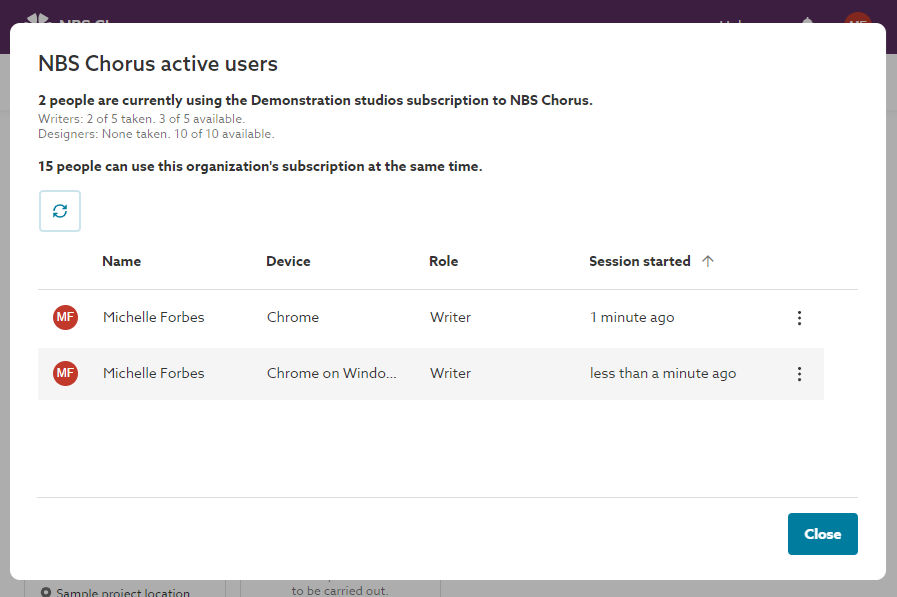
Screenshot showing the same user signed into the 'Demonstration studios' organization twice.
User sessions are counted separately for each browser, application, and device.
Consider these scenarios:
Multiple tabs of the same web browserFor example, you are signed into the platform and have it open in several Chrome tabs, or you have Chrome open in two separate windows. | Counts as one active user. |
Separate instances of the same web browserFor example, you have separate instances of Chrome and Chrome Incognito running, and you are signed into the platform in both at the same time. | Counts as multiple users. |
Separate browsersFor instance, you might be logged into the platform simultaneously via Chrome and Firefox. This also applies to signing into the platform through Autodesk Revit and another browser like Chrome at the same time. Note: At the moment, using the platform in Autodesk Revit is being recorded as being signed into 'Chrome' (Chrome without an operating system). This is because Revit uses a Chromium-based browser. | |
Web browsers on separate devicesE.g. you are signed into the platform on a laptop and a tablet at the same time. |